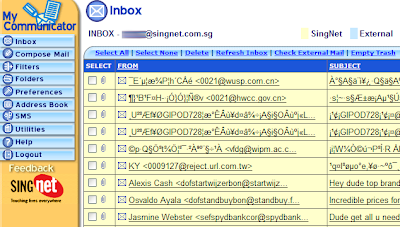
Problem: There are just too many spam mail coming into my mail account, and everyday I spend half hour to go thru the e-mails to delete them. Is there anyway to get rid of the spam mails?
Solution 1:
If you think you have the extra money to spend, go apply for Singnet's spam mail filtering services for a subscription of $2.10 per month. So if you are on a 24-month contract, you will have to pay around $50.00 more. Whether you think it is affordable, its your choice. But the problem is that these days, Hotmail, Yahoo! and Google are providing free spam mail filtering services. I am not sure why Singnet still charge a small fee for it.
Solution 2:
If you think its not worth it, follow the instructions below.
1. Apply for another free Email account / ID (Hotmail, Gmail, Yahoo!, etc).
2. Use Singnet's mail forwarding services, forward all your mail to another e-mail account like Gmail, Hotmail, or Yahoo! mail. Click HERE to get to Singnet Email forwarding page. Fill in your User ID, Password, Forwarding address and Keep Forward Message. Click on the enable button once done. You should see another screen showing that the mail forwarding services is enabled, with the new Email account.
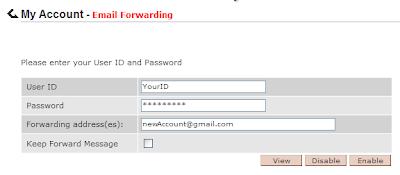
(Note: you might want to try if the spam mail filter works to your liking, so I suggest that you check the "Keep Forward Message" in the first few days of testing before unchecking it. If you do not uncheck it, it will take up the space in the Singnet Email account. Soon it will start to reject further mails.)
What actually happens:
- Receive mail from other people
- Mail will be forwarded to your new account upon activating the mail forwarding services.
- All mail in your new account will be filtered. Filtered mail are not deleted, but are stored in a "spam" folder where you might take a look at a later time.
- There you go, now you will have filtered mail without actually paying more.
3. For those people who are using Email client such as outlook express, Mozilla Thunderbird, you need some more configuration to be done.
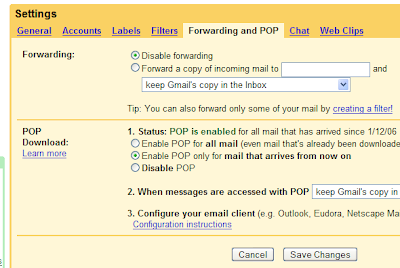
4. Assuming that you are using Gmail, login to your new Gmail account. Click the setting link on the top right hand corner. Choose "Forwarding and POP". Choose your preferred settings. If you are not sure, follow the image below. Once done remember to click "Save Changes".
5. To configure your Email client, click Here to view the instructions by Gmail. Since the instructions is being explained, I don't think I need to elaborate again.
LINKS:
Singnet's Anti-Spam Services
Switching to Gmail
Click Here For More...


